WhatsApp DP Ideas & How to Use WhatsApp Web
Fresh profile picture ideas to copy-paste, plus a complete, accurate guide to setting up WhatsApp Web and WhatsApp Business Web — including a common misconception most guides still get wrong.
WhatsApp DP Ideas Worth Copying
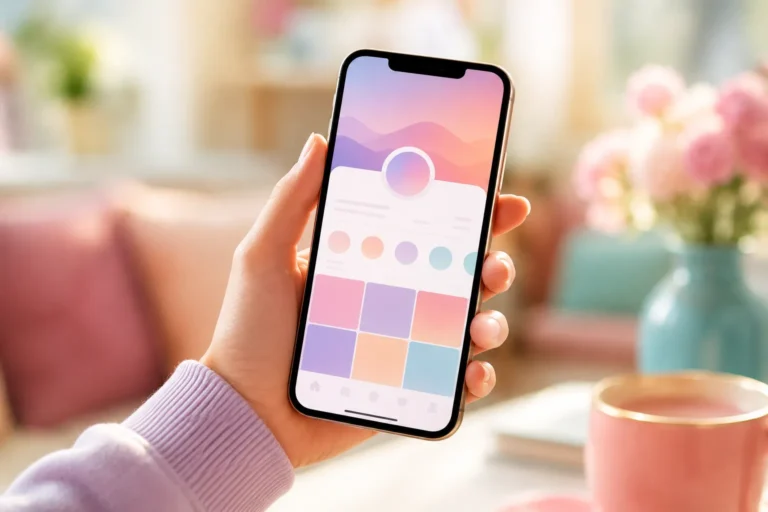
Your whatsapp dp doesn’t have to be complicated — sometimes the simplest dp for whatsapp choices work best. Here are a few approaches that consistently look good:
The most common mistake is using a photo that’s too small, too busy, or too dark — WhatsApp DPs display as a small circle, so anything with fine detail or clutter gets lost. Keep it simple and well-cropped.
How to Use WhatsApp Web
A quick clarification before the steps: if you searched whatsapp web download, there’s actually nothing to download — WhatsApp Web runs entirely in your browser at web.whatsapp.com, with no separate app install required (that’s different from WhatsApp Desktop, a separate installable app for Windows/Mac).
- Open web.whatsapp.com in any browser on your computer — a QR code will appear.
- Open WhatsApp on your phone.
- On Android, tap the three-dot menu → Linked Devices → Link a Device. On iPhone, go to Settings → Linked Devices → Link a Device.
- This is the whatsapp web scan step: point your phone’s camera at the QR code on your screen and hold it steady until it registers.
- Your chats load automatically in the browser once linked.
Good to know: since WhatsApp’s multi-device update, your phone no longer needs to stay connected to the internet after the initial scan — the browser session works independently. You can also skip the QR code entirely and use “Log in with phone number” instead, entering your number and confirming from the WhatsApp app.
Security tip: the real WhatsApp Web page only ever shows a QR code — it never asks for your password or verification code directly on the page. If a site claiming to be WhatsApp Web asks for login credentials, close it immediately.
WhatsApp Business Web
WhatsApp Business Web works the same way as regular WhatsApp Web — scan a QR code from the WhatsApp Business app to link it to your browser — but gives businesses access to features like quick replies, labels, and catalog management from a larger screen, which is useful for handling higher message volumes than a phone alone comfortably allows.
About the WhatsApp Logo
The official whatsapp logo — a white speech bubble with a phone icon on a green background — is a useful way to verify you’re using the genuine app rather than a modified or fake clone. If an app’s icon looks slightly off in color or design, or the app isn’t listed as “WhatsApp Messenger” by WhatsApp LLC in your app store, it’s worth double-checking before installing.
Frequently Asked Questions
Do I need to download anything for WhatsApp Web?
No — WhatsApp Web runs in your browser at web.whatsapp.com. WhatsApp Desktop is a separate, optional installable app if you prefer a standalone window instead of a browser tab.
Does my phone need to stay online for WhatsApp Web to work?
No, not anymore. Since WhatsApp’s multi-device update, your browser session works independently after the initial QR scan — your phone can go offline afterward.
How many devices can I link to WhatsApp Web?
Up to four devices can be linked to one WhatsApp account at the same time.
What’s the difference between WhatsApp Web and WhatsApp Business Web?
They work identically for linking, but WhatsApp Business Web adds features like quick replies, labels, and catalog access for business accounts.